You cleaned the site. The scanner came back green. Then, a few hours or a few days later, the malware is back: the same redirects, the same spam pages, the same warning from your host. That is not bad luck. Something on the server is putting the malware back, and it survived your cleanup.
This guide lists the five places that "something" hides, in the order we check them, with commands you can run yourself. It comes from real cleanups, including one shared hosting account where a site was reinfected within a day of being cleaned.
Short version:
- Malware that keeps returning has a source that is not the infected file you deleted. Deleting files only treats the symptom.
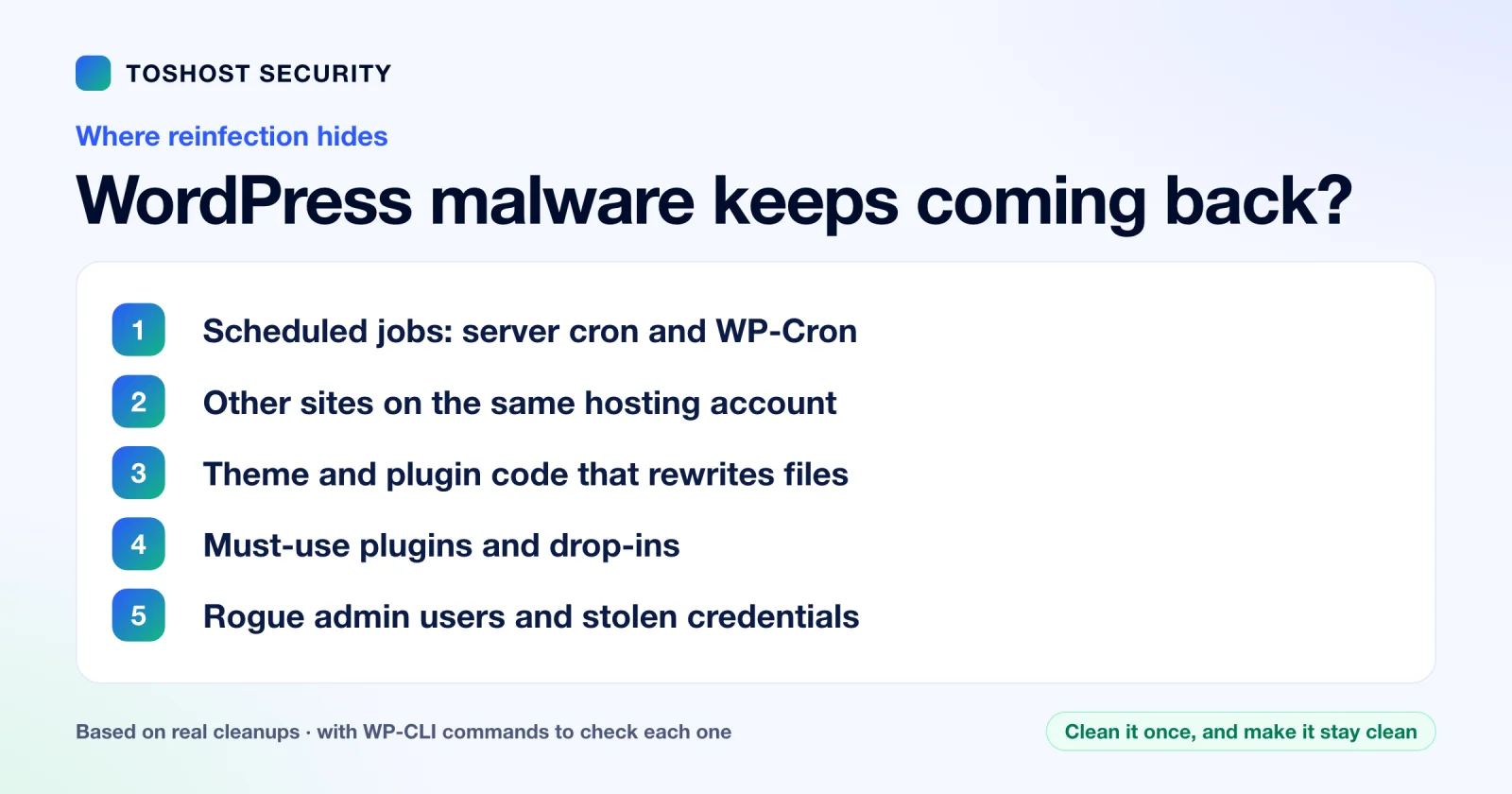
- The five usual sources: scheduled jobs (server cron and WP-Cron), other sites on the same hosting account, theme and plugin code that rewrites files, must-use plugins and drop-ins, and admin accounts and stolen credentials.
- Order matters. Remove the things that re-create the malware first, then clean the files, then change passwords. Change them earlier and a credential stealer can take the new ones.
- If the hosting account holds more than one site, cleaning one site at a time will not hold.
Why removing the files is not enough
A plugin scanner finds a malicious file, you delete it, the scan is clean. But the attacker did not rely on that file alone. During the break-in they also set up ways to put it back: a scheduled task, a second site they control on the same account, a modified theme, a hidden admin user. Any one of these can restore the malware within minutes, often on the next page load.
This is why cheap "we removed the malware" cleanups fail. Removing the visible malware is the easy part. Finding what recreates it is the job. The five sections below are that search.
1. Scheduled jobs: server cron and WP-Cron
A cron job is the most reliable way to reinfect a site, because it runs whether or not anyone visits. In one account we cleaned, 17 cron entries ran every 15 to 24 minutes. Each one checked whether a small backdoor file existed in a site's folder and, if it was missing, wrote it back. The site had already been cleaned once, and the backdoor kept coming back anyway.
What to look for:
- Cron entries containing
base64 -d,curl ... | shorwget ... | sh. - Commands shaped like "if this file does not exist, create it". That pattern is a re-dropper.
- Files named
wp-cron-something.php. WordPress core has one file calledwp-cron.phpand nothing with a suffix.
# On the server (SSH), for your account:
crontab -l

# In cPanel: Advanced > Cron Jobs. Read every entry.

# WordPress's own scheduler (needs WP-CLI):
wp cron event list --fields=hook,next_run_relative
Unfamiliar hook names in wp cron event list deserve a look. If you have root on the server, check the other users' cron files too, because a re-dropper can be planted in an account you were not cleaning.
2. Other sites on the same hosting account
On shared hosting, one cPanel account often holds many sites that all run as the same user. If the attacker got into one, they can write into all of them. The account we mentioned had about 20 WordPress installs, and every one carried the same toolkit. Cleaning the first site was pointless while the other 19 could reinfect it.
If your account holds more than one site, treat the whole account as the unit you clean. That means scanning every site, including old, abandoned or "coming soon" ones, which are common entry points because nobody updates them. If you cannot clean them all, move the important site to its own account so it no longer shares a user with the infected ones.
3. Theme and plugin code that rewrites files
Attackers do not only add files. They edit legitimate ones. In the same case, five themes had a block injected at the top of functions.php that restored a credential stealer every time WordPress loaded. Deleting the stealer changed nothing, because the theme put it back on the next request. Check every theme on the account, including the ones you do not use, and delete the unused ones.
What to do:
# Compare core, plugins and themes with the official copies:
wp core verify-checksums
wp plugin verify-checksums --all

# Reinstall core from a clean download, same version (leaves wp-content alone):
wp core download --force --skip-content --version=$(wp core version)

# Delete every theme and plugin you do not use. Do not just deactivate them.
Checksum tools cover WordPress core and plugins from the official directory. They cannot vouch for premium plugins, page builders or custom themes, so restore those from the original vendor download, never from a backup taken after the infection.
4. Must-use plugins and drop-ins
Must-use plugins in wp-content/mu-plugins/ load automatically on every request and cannot be turned off from the normal Plugins screen. Drop-in files such as advanced-cache.php, object-cache.php and db.php load automatically too. Both are legitimate WordPress features, which is exactly why attackers use them. In the account above, a credential stealer lived in mu-plugins under five different innocent-sounding names.
ls -la wp-content/mu-plugins/
ls -la wp-content/*.php

# Files WordPress considers must-use or drop-ins:
wp plugin list --status=must-use
wp plugin list --status=dropin
Some hosts legitimately ship one file in mu-plugins (a page-cache helper, for example), so ask your host before deleting one you do not recognise. Everything else in that folder should be something you can explain.
5. Rogue admin users and stolen credentials
If the attacker created an administrator account, they can log back in and reinstall everything the moment you clean up. These accounts often have random names, no posts and a throwaway email address. Malware can also hide an account from the Users screen, so check the database as well as wp-admin.
wp user list --role=administrator --fields=ID,user_login,user_email,user_registered

# Or directly in the database (adjust the table prefix):
SELECT ID, user_login, user_email, user_registered FROM wp_users
WHERE ID IN (SELECT user_id FROM wp_usermeta
             WHERE meta_key = 'wp_capabilities' AND meta_value LIKE '%administrator%');
Then the order problem. If a credential stealer was active, every password typed into wp-admin since the infection was captured. Changing your password while the stealer is still installed just hands over the new one. So: remove the persistence and the stealer first, then change every password (WordPress, hosting panel, SFTP, database), then rotate the security keys and salts in wp-config.php so existing login sessions stop working:
wp config shuffle-saltsThe order that actually holds
- Preserve evidence. Copy suspicious files somewhere safe before deleting, so you can see later how they got in.
- Kill the persistence. Cron entries, rogue admins, must-use plugins and drop-ins you cannot explain.
- Restore code from clean sources. WordPress core, plugins, themes. Delete what you do not use.
- Search for what is left. PHP files in
wp-content/uploads(there should be none:find wp-content/uploads -name '*.php'), and PHP files changed recently outside the folders you just replaced. - Rotate every credential and the salts, now that the stealer is gone.
- Harden so the same door does not open twice: update everything, stop PHP running from the uploads folder, set
DISALLOW_FILE_EDITinwp-config.php, limit login attempts. - Watch it. Check for new files, new admin users and new cron entries daily for the next week or two. A reinfection that shows up after two days tells you something was missed.
When to stop doing this yourself
Do it yourself when it is one site, you have SSH or WP-CLI access, and the malware has not returned twice. Get a specialist when:
- The hosting account holds several sites, or you suspect the whole account or server.
- You have already cleaned it once and it came back.
- Your host has suspended the account or you are on a blacklist.
- You cannot tell which files are legitimate.
This is the work our WordPress malware removal service does. It is a flat fee, not a yearly subscription: $59 for one hacked WordPress site, and $199 for a Full Account and Server Cleanup when the whole hosting account or the server is involved. Both include credential rotation, hardening, a written incident summary and a monitoring period afterwards (7 days on the $59 service, 30 days on the $199 one). If the site is under active attack or spread across several servers, there is an Emergency Response tier at $499, scoped to the incident.
If your problem is one WordPress site and one obvious plugin, the $59 service covers it. If you found any of the five sources above on an account with other sites, that is a Full Account cleanup, and it is better to know now than after the third reinfection. For more examples of how these cases unfold, see what we actually found in five real cleanups.
Flat one-time fees, no subscription. Order straight from this page:
| Plan | Best for | Price | |
|---|---|---|---|
| WordPress Malware Removal | One hacked WordPress site | US$59 | Order now |
| Full Account & Server Cleanup | A whole hosting account or a server | US$199 | Order now |
| Emergency Response | An active attack, or several sites or servers | from US$499 | Order now |
Checkout is in US dollars. Emergency Response is a starting price; the final invoice is scoped to the incident.
Frequently asked questions
Why does WordPress malware keep coming back after I remove it?
Because something is recreating it. The usual sources are a cron job or WP-Cron event that rewrites the file, other infected sites on the same hosting account, injected code in a theme or plugin, a hidden must-use plugin or drop-in, and a rogue admin account. Deleting the infected files only treats the symptom.
How do I find a cron job that reinfects my site?
Read every entry in your server crontab (crontab -l over SSH, or Advanced > Cron Jobs in cPanel). Look for base64 -d, curl or wget piped into a shell, and commands that create a file only if it is missing. Also run wp cron event list to check WordPress's own scheduler for hooks you do not recognise.
Can restoring a backup reinfect my site?
Yes, if the backup was taken after the infection. Restore a backup from before the earliest sign of infection, then update everything, remove unused themes and plugins, and rotate credentials. Restoring alone does not close the way the attacker got in.
Should I change passwords before or after cleaning the site?
After you have removed the persistence and any credential stealer. If a stealer is still installed, a new password is captured as soon as you type it. Clean first, then change every password (WordPress, hosting panel, SFTP, database) and rotate the salts in wp-config.php.
Is deleting the infected plugin enough?
Rarely. The plugin is usually where the attacker got in, or a place they left a copy. You also need to check cron jobs, other themes and plugins, the mu-plugins folder, admin users and other sites on the same account, or the malware returns.
When is it worth paying someone to clean a hacked WordPress site?
When the malware has already come back once, the hosting account holds several sites, your host has suspended the account, or you cannot tell which files are legitimate. Toshost's WordPress Malware Removal is a flat $59 for one site, and a Full Account and Server Cleanup is $199.