Windows Update fails for a small number of reasons: not enough disk space, a broken download in the update cache, damaged system files, security software locking a file, or a network that can't reach Microsoft's update servers. The error code tells you which one you are dealing with, and each has a fix you can run yourself in a few minutes.
This guide works through those fixes in order, from the quickest to the most thorough. It covers Windows 11 and Windows 10, and the same commands work on a Windows Server VPS.
Short version:
- Restart, check you have at least 20 GB free on the C: drive (Microsoft's figure for 64-bit Windows), turn off any VPN and try again.
- Run the Windows Update troubleshooter.
- If that fails, clear the update cache by renaming the
SoftwareDistributionandcatroot2folders. - Then repair Windows with
DISM /RestoreHealthfollowed bysfc /scannow. - If a single update still won't install, download it by hand from the Microsoft Update Catalog.
Bangla readers: we also have a Windows 10 update guide in Bangla.
First, find your error code
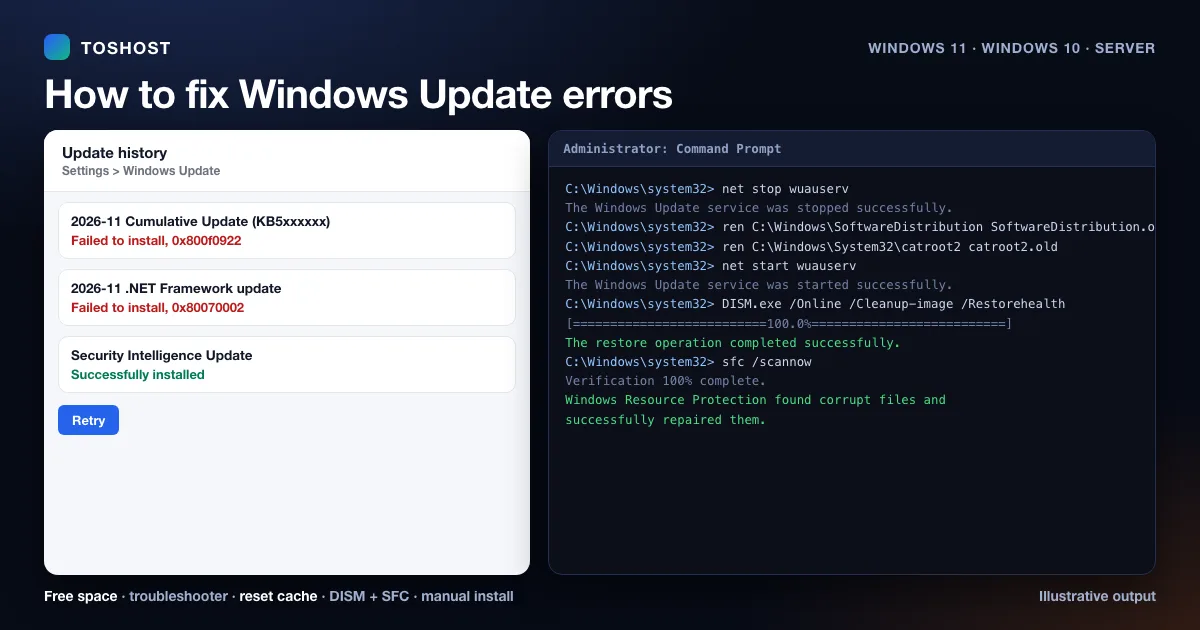
Open Settings > Windows Update > Update history (on Windows 10: Settings > Update & Security > Windows Update > View update history). A failed update shows its KB number and an error code such as 0x800f0922. Write both down. The code points you to the right fix in the table further down, and the KB number lets you download that exact update later if you need to.
Step 1: Rule out the simple causes
Microsoft's own checklist starts here, and it fixes more failures than you would expect:
- Restart the PC, then run Windows Update again. Some updates need a restart before the next one can install.
- Check the connection. Plug laptops into power and make sure the internet works.
- Turn off any VPN while you update. A VPN is a known cause of
0x800f0922. - Check the date and time. A clock that is badly wrong breaks the secure connection to the update servers.
- Unplug external drives and docks you don't need.
- Use an administrator account. Standard accounts can't install some updates.
Step 2: Free up disk space
Microsoft says a 64-bit PC needs about 20 GB free to install updates (16 GB on 32-bit). Feature updates need the most. To make room, open Settings > System > Storage, turn on Storage Sense or run Cleanup recommendations, and empty the Recycle Bin. Low space is the most common cause of 0x800f0922 and 0x80070070.
Step 3: Run the Windows Update troubleshooter
The troubleshooter checks the update services and resets common problems automatically.
- Windows 11: Settings > System > Troubleshoot > Other troubleshooters > Windows Update > Run. On recent versions this opens the Get Help app, which runs the same checks.
- Windows 10: Settings > Update & Security > Troubleshoot > Additional troubleshooters > Windows Update > Run the troubleshooter.
Restart when it finishes, then try Windows Update again.
Step 4: Clear the Windows Update cache
Windows keeps downloaded updates in C:\Windows\SoftwareDistribution and their signatures in C:\Windows\System32\catroot2. If a download was damaged, Windows keeps trying to install the same broken files. Renaming both folders makes Windows download fresh copies. Your personal files are not touched.
Open Command Prompt as administrator (search for "cmd", right-click, Run as administrator) and run these lines one at a time:
net stop wuauserv
net stop cryptSvc
net stop bits
net stop msiserver
ren C:\Windows\SoftwareDistribution SoftwareDistribution.old
ren C:\Windows\System32\catroot2 catroot2.old
net start wuauserv
net start cryptSvc
net start bits
net start msiserver
If a ren line says "Access is denied", a service is still running. Run the matching net stop line again, or restart and repeat. After the commands finish, restart and run Windows Update. Your update history list will look empty afterwards; that is expected. Once updates install normally you can delete the two .old folders.
Step 5: Repair Windows system files
Errors such as 0x800f081f, 0x80073712 and 0x80070570 mean files in Windows itself are damaged. Two built-in tools repair them. In an administrator Command Prompt, run:
DISM.exe /Online /Cleanup-image /Restorehealth
sfc /scannow
Run them in that order. DISM repairs the store Windows uses as its source of clean files (it needs an internet connection and can take 10 to 20 minutes). SFC then uses that store to fix the system files. When DISM finishes you should see "The restore operation completed successfully". Restart and try the update again.
Step 6: Check your security software
Third-party antivirus and other tools that hook into the file system can lock files while Windows is replacing them. Microsoft links 0x80070020 to exactly this. Pause or temporarily uninstall the third-party security product, install the update, then turn the protection back on. If you can't find the cause, a clean boot (starting Windows with only Microsoft services) shows whether another program is interfering.
Step 7: Install the update by hand
If one update keeps failing, download it directly. Go to the Microsoft Update Catalog, search for the KB number from your update history, and download the version that matches your Windows version and system type (x64 for almost every modern PC). Double-click the .msu file to install it, then restart.
Step 8: Repair-install Windows, keeping your files
When nothing else works, an in-place repair reinstalls Windows over itself and keeps your files and apps. On Windows 11, open Settings > System > Recovery and use Fix problems using Windows Update (Reinstall now) if your version shows it. Otherwise, download the installation media from Microsoft's software download page, run setup.exe from inside Windows, and choose to keep personal files and apps. Back up anything important first.
Common Windows Update error codes and what to do
Most of the meanings below come from Microsoft's own Windows Update documentation. 0x80070070 and 0x80073712 are standard Windows error codes (disk full, and a damaged component store).
| Error code | What it means | Try first |
|---|---|---|
0x80070002 / 0x80070003 | Windows can't find a file or path it needs for the update. | Restart, run the troubleshooter, check disk space, then clear the cache (step 4). |
0x8007000D | The downloaded data is invalid or corrupted. | Clear the cache (step 4) so the update downloads again. |
0x80070070 | Not enough disk space. | Free up space (step 2). |
0x800F0922 | The update couldn't finish installing. Microsoft lists low disk space and VPN connections as causes. | Free up space and disconnect the VPN (steps 1 and 2). |
0x800F081F | Windows can't find the source files it needs, usually because the component store is damaged. | DISM, then SFC (step 5). |
0x80073712 / 0x80070570 | A file the update needs is damaged or missing. | DISM, then SFC (step 5). |
0x80070020 | Another program, often antivirus, is holding a file open. | Pause third-party security software or try a clean boot (step 6). |
0x800705B4 | The operation timed out. | Check the connection, temporarily turn off third-party antivirus or firewall, restart. |
0x80240034 | The update failed to download. | Make sure the Windows Update service is running, run the troubleshooter, clear the cache. |
0x80072EE2 / 0x80244022 | Windows can't reach the update servers (timeout or "service unavailable"). | Check the internet connection, VPN, proxy and firewall rules. |
0x8024402F | Processing of the update package finished with errors. Microsoft links it to web-filtering software. | Allow Windows Update through any content filter or proxy, then retry. |
A note for Windows 10 users
Windows 10 reached end of support on 14 October 2025. Since then it only receives security updates through the Extended Security Updates (ESU) program, and only on PCs that are enrolled. Microsoft has since extended the consumer ESU program to October 2027 (BleepingComputer's report). If Windows Update on a Windows 10 PC says there are no security updates, check whether the PC is enrolled before troubleshooting anything else. If the hardware supports it, upgrading to Windows 11 is the long-term fix.
On a Windows Server or Windows VPS
Steps 4 and 5 work the same way on Windows Server. Two points are specific to servers. First, update failures on a server are often a firewall or proxy problem, so check that the server can reach Microsoft's update endpoints. Second, Microsoft documents one server-only cause of 0x800F0922: on Windows Server 2016, cumulative updates can fail until the "User" and "Network Service" accounts are given write permission on C:\Windows\System32\spp\.
Take a snapshot or backup before large updates on any server you depend on, so you can roll back if an update goes wrong. Our guide to keeping a Windows VPS secure covers update scheduling alongside the other basics. If you need a Windows server for remote work or hosting, see our Windows RDP and VPS plans.
Frequently asked questions
Is it safe to delete the SoftwareDistribution folder?
Yes, once the Windows Update service is stopped. The folder only holds downloaded updates and update records, not your files. Windows rebuilds it and downloads what it needs again. Renaming it, as in step 4, is safer than deleting it because you can put it back.
Why does Windows Update get stuck at 0% or 100%?
Usually a damaged download or a stuck service. Give it an hour first, since large updates can look frozen. If it really is stuck, restart and clear the update cache (step 4).
Do I need to reinstall Windows to fix update errors?
Almost never. Clearing the cache and running DISM and SFC fixes most failures. The in-place repair in step 8 reinstalls Windows but keeps your files and apps, so a full clean install is a last resort.
How do I find which update failed?
Open Settings > Windows Update > Update history. Each failed update shows its KB number and the error code.